 Typed & Kept
Don't lose form text to a crash or refresh
Typed & Kept saves what you type into web forms, so a crash, closed tab or sign-out does not cost you the text. It also keeps a copy of order confirmations.
There is no Typed & Kept account or server, and it does not send your drafts or receipts anywhere. The only network call is a Pro license check with Polar, which sells Pro. It is built to skip password fields, the username or email field of a sign-in form, card and bank numbers, PINs and one-time codes.
Add to Chrome, free Free plan. Pro is $9 once.
Also on Firefox and Microsoft Edge.
How it works
- Install Typed & Kept and keep typing as you normally would.
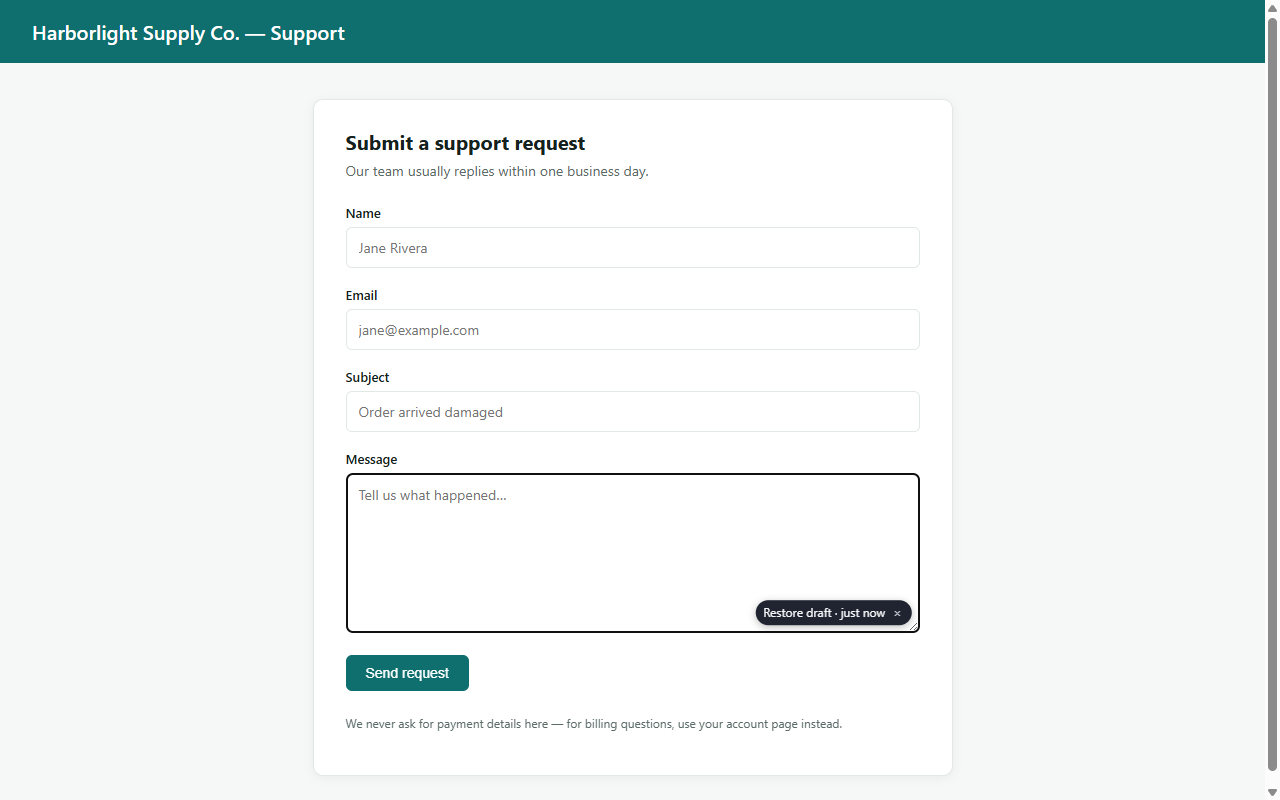
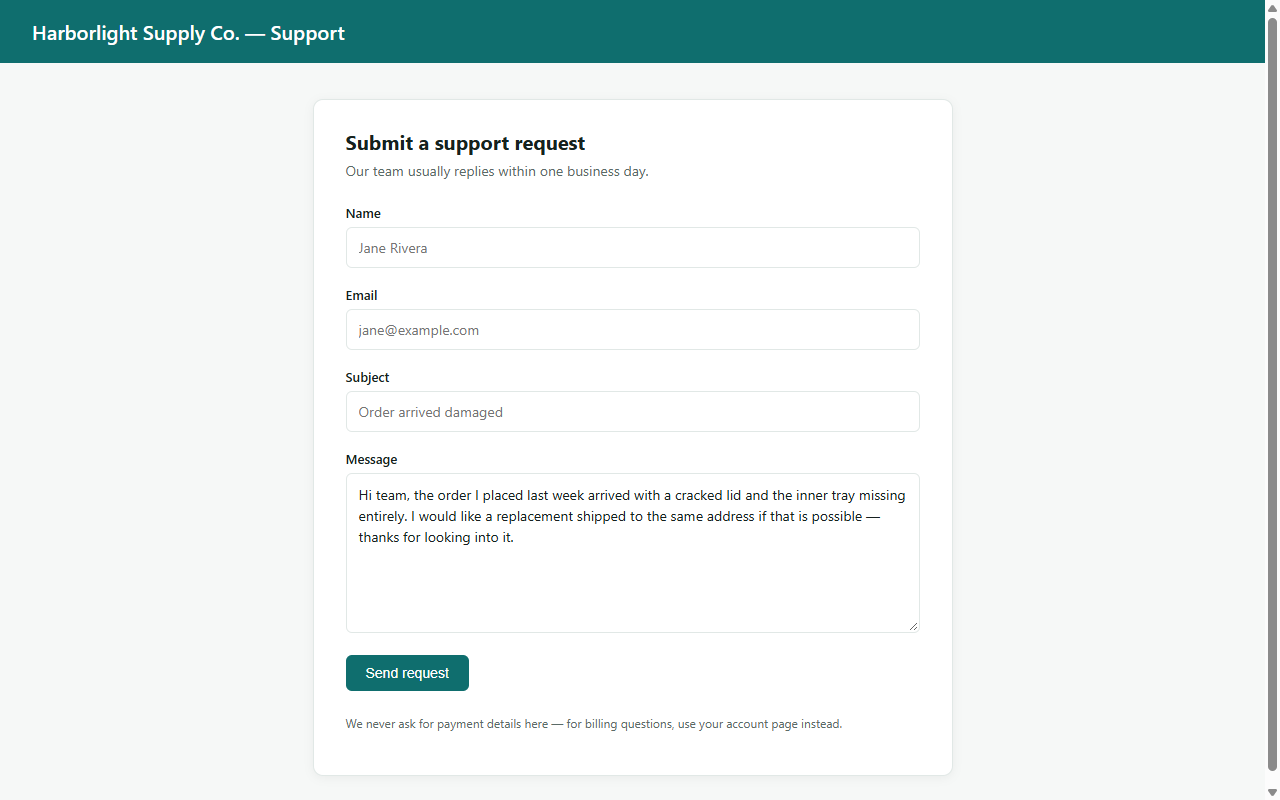
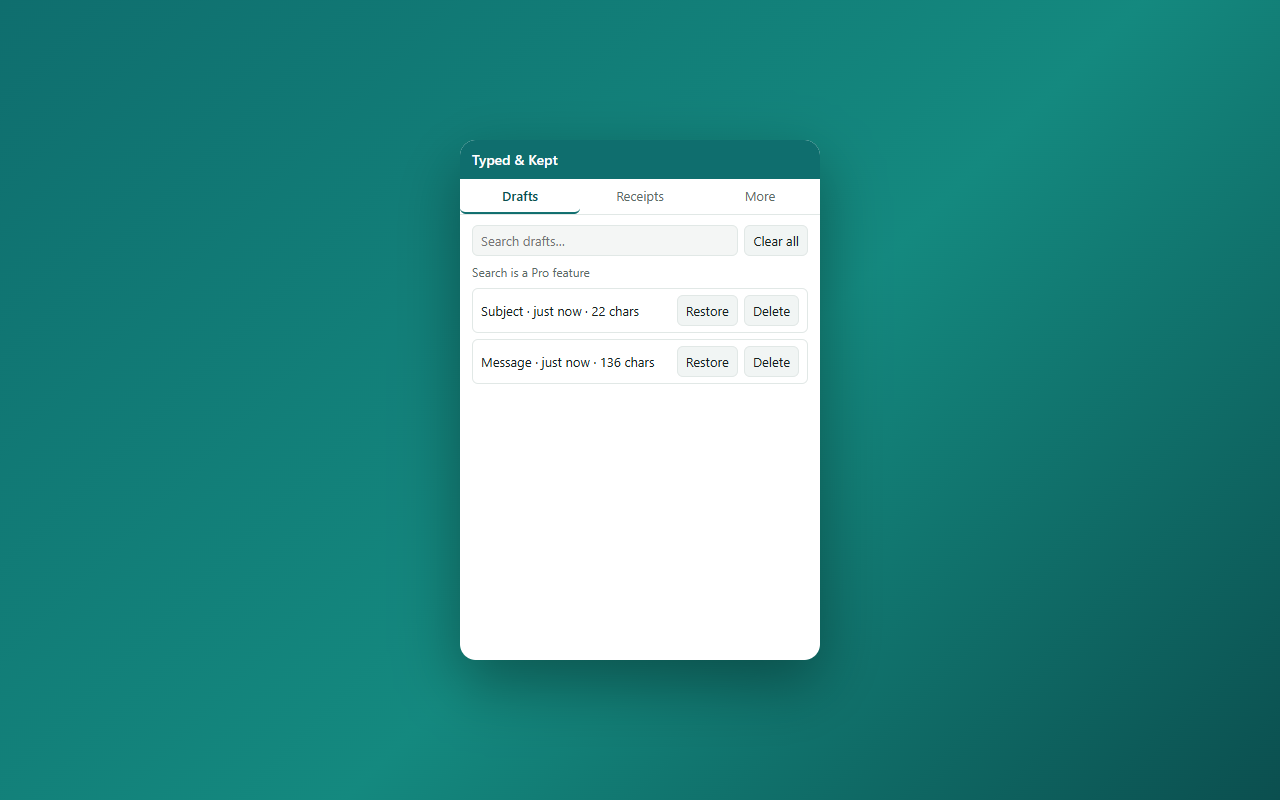
- If a tab closes or a page reloads, reopen the page. Click into the empty field: a Restore bar appears under it when a draft is still stored. Click Restore, and the text comes back. Use the menu on the bar to pick an earlier version, or restore a draft from the Drafts tab in the toolbar popup. On a form with several saved fields, one click restores them all. If a submit fails, asks you to sign in again, or comes back empty, a “Your text is safe” note offers Restore or Return to form.
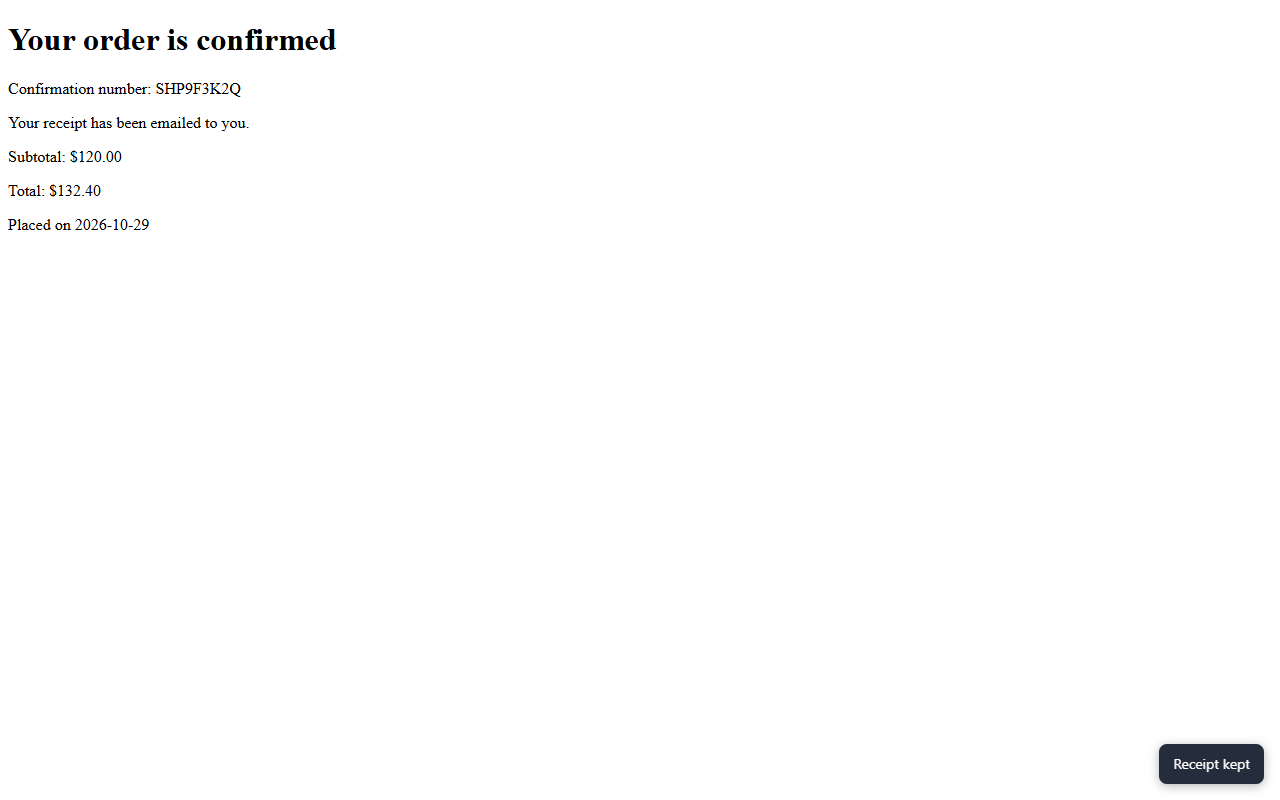
- After an order, if you land on a confirmation or thank-you page, Typed & Kept can save the merchant, order number, total, date, and a text snapshot, once per order. If it does not catch that page, use the toolbar button to save it by hand, or press the default shortcut Alt+Shift+Y (Alt+Shift+R in the 1.0.0 builds still on Firefox and Edge) if your browser set it. You can change it in your browser's extension shortcuts. Receipts can show how many days are left to return an item.
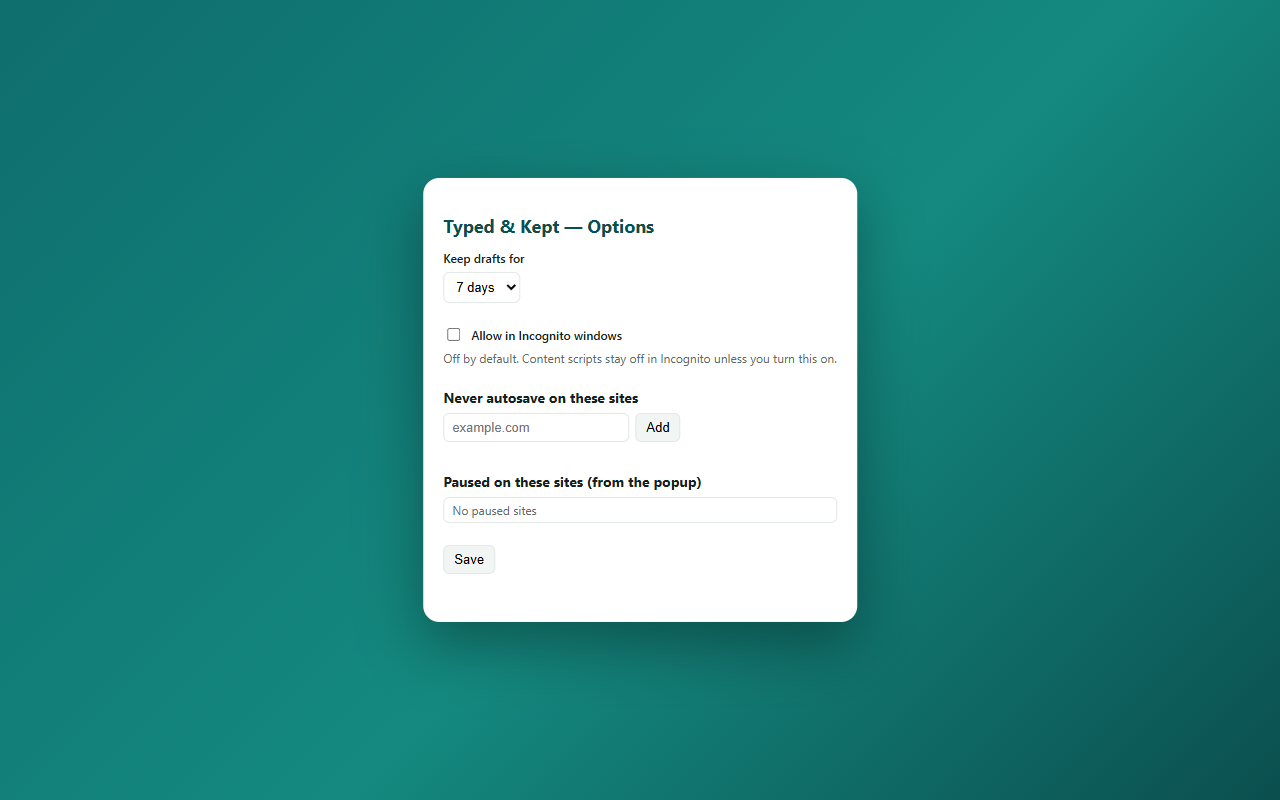
- Open Options to pause a site, add your own blocklist, turn on right-click restore, or (on Pro) change how long drafts are kept. “Delete everything stored” in the popup erases every saved draft and receipt.
What it does
Typed & Kept keeps a local copy of text you type into a text box, text area, or editable field on a web page.
Auto-keep depends on the page looking like an order confirmation. It is not guaranteed on every store's checkout. Manual save covers a miss.
Drafts and receipts live in this browser profile. There is no Typed & Kept account. The only network call is a Polar license check if you buy Pro.
It is not a form filler, a password manager, a receipt-scanning camera tool, or a bookkeeping app. It does not sync across computers, and it does not recover a draft after you uninstall the extension or delete the browser profile.
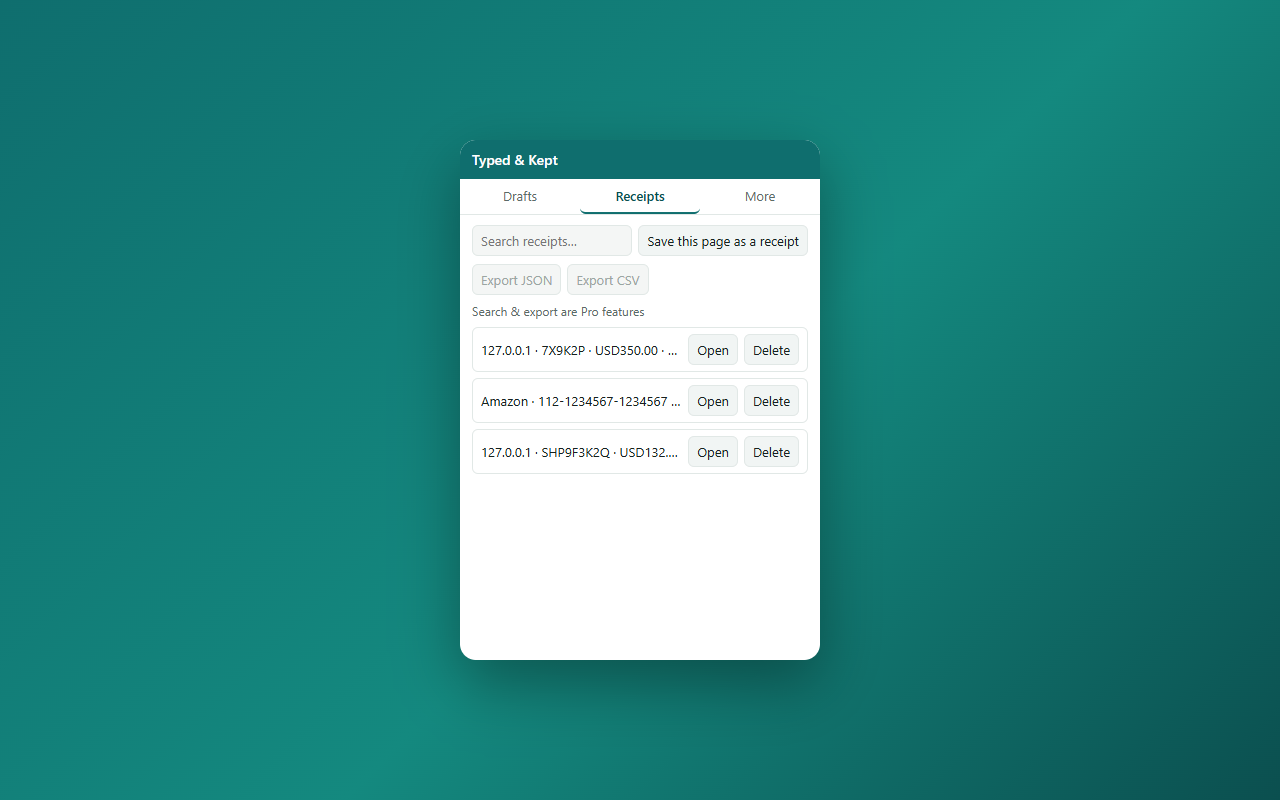
Every feature, with a how-to video
Not sure what a feature does or how to use it? See every feature with a short silent video and steps: autosave and restore, receipts, privacy controls, and Pro search, export, tags and retention.
Free and Pro
| Plan | Drafts | Receipts | Search, export, tags | Price |
|---|---|---|---|---|
| Free | Kept for 7 days, 3 versions per field | Up to 20, return countdown on the 5 newest | Not included | $0 |
| Pro | 7, 30, 90, or 365 days, or forever (you choose), 50 versions per field | Unlimited, return countdown on every receipt | Search drafts and receipts, export JSON or CSV, tags on receipts | $9 once, via Polar, no subscription |
Paste a Pro license key in the toolbar popup to unlock it. Install the extension first, then buy Pro from that popup if you want it.
Privacy, in short
Everything Typed & Kept stores lives on this computer, in this browser profile. It is built to skip password fields, payment numbers, bank details, government IDs, and one-time codes, and it skips a built-in list of bank, brokerage, payment, tax, government-benefit, health-portal, and password-manager sites. You can pause it on a site or add your own blocklist in Options. Incognito is off unless you allow it (see the FAQ). The only network call is a Polar license-key check when you use Pro, about every 3 days while Pro stays active, and that request sends only the key and Polar organization id, not your drafts or receipts. The full policy is on the privacy page.
Guides
How to recover form data in Chrome after a crash walks through what official Chrome docs say, what to try, and how the Restore bar works.
How to save order confirmation pages in Chrome covers saving a confirmation as a PDF, and how Typed & Kept can keep a local copy when it sees one.
FAQ
Where does Typed & Kept store my data?
On this computer, in this browser profile, in chrome.storage.local. There is no Typed & Kept account and no Typed & Kept server.
What does it skip?
It is built to skip password fields, the username or email field of a sign-in form, credit or debit card numbers, CVV or CVC, bank account and routing numbers, IBAN or SWIFT, Social Security numbers, tax IDs, passport and driver's license numbers, PINs, and one-time or two-factor codes. It also skips a built-in list of bank, brokerage, payment, tax, government-benefit, health-portal, and password-manager sites, plus any site you pause or add to your blocklist. A receipt you save by hand is the exception to the site blocklist, because that is you asking.
What is on the free plan, and what does Pro add?
Free keeps drafts for 7 days with 3 versions per field, and up to 20 receipts with a return countdown on the 5 newest. It has no search, export, or tags. Pro is $9 once, sold through Polar, with no subscription. Pro lets you keep drafts for 7, 30, 90, or 365 days, or forever, with 50 versions per field, unlimited receipts with a countdown on every one, search, export to JSON or CSV, and tags on receipts. You paste the license key in the toolbar popup.
How do I get a draft back after a crash or a closed tab?
Reopen the page. If Typed & Kept still has a draft for that field, click into the empty field and a Restore bar appears under it. Click Restore and the text comes back; the bar's menu lists earlier versions. You can also restore a draft from the Drafts tab in the toolbar popup.
Does it work in Incognito?
Only if you allow it twice: turn on Allow in Incognito for Typed & Kept on your browser's extensions page, then turn on Incognito in Typed & Kept's Options. Both are off by default.
How do I delete everything it has stored?
Open the toolbar popup and press Delete everything stored, then click again to confirm. That erases every draft and receipt and keeps your settings and any Pro license. Uninstalling the extension from your browser's extensions page removes its stored data too.